Introduction
Quick Access Popup 12.2.1 PC Software is a versatile productivity tool designed to help Windows users quickly access frequently used folders, files, applications, and URLs. Developed by Jean Lalonde, Quick Access Popup allows users to streamline workflows, reduce repetitive navigation, and improve efficiency.
In modern computing environments, users often waste significant time navigating nested directories, searching for frequently used files, or opening multiple applications. Quick Access Popup addresses this challenge by providing a customizable popup menu that can be triggered with keyboard shortcuts, mouse gestures, or toolbar buttons. The 12.2.1 version improves stability, adds enhanced configuration options, and provides better integration with the latest Windows builds. 
Overview
Quick Access Popup serves as a navigation accelerator for Windows users. Instead of repeatedly navigating through directories or searching through menus, users can instantly open their favorite folders, files, or applications with a single click or shortcut.
The software is highly configurable, allowing users to create multiple menus, submenus, and shortcuts tailored to their workflow. It also supports portable installation, making it ideal for professionals who switch between computers. Quick Access Popup 12.2.1 focuses on ease of use, speed, and reliability, helping users save time on repetitive tasks and improve overall productivity.
Key advantages include:
-
Rapid access to frequently used folders and files
-
Customizable menus for personalized workflows
-
Integration with standard Windows commands and applications
-
Support for keyboard shortcuts and mouse gestures
Description
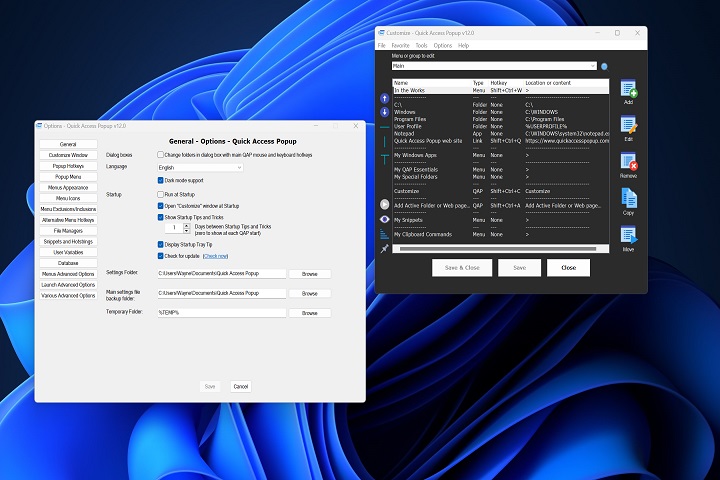
Quick Access Popup works by creating a customizable popup menu that displays shortcuts for folders, files, and applications. Users can assign hotkeys or mouse gestures to trigger the menu instantly, reducing navigation time and streamlining repetitive tasks.
User Interface
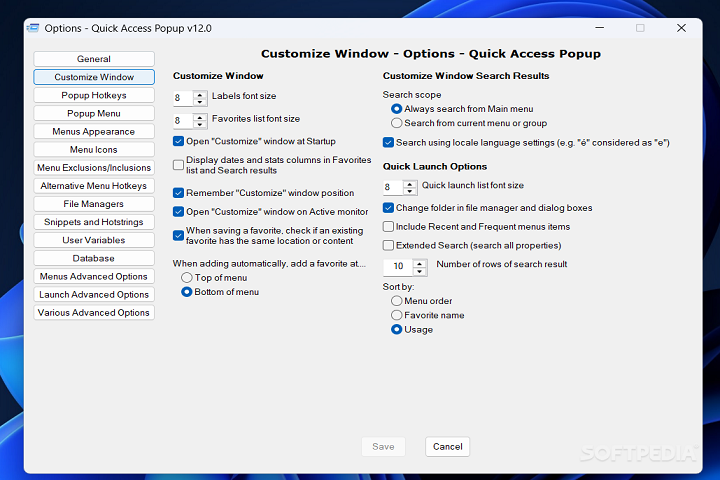
The interface is intuitive, offering a simple configuration panel where users can manage menus, assign shortcuts, and set preferences. A clear structure ensures that even users new to productivity tools can create and organize menus without difficulty.
Menu Management
Users can create multiple menus and submenus for different tasks. For example, one menu can contain project-specific folders, while another can include system tools, frequently used applications, or commonly accessed URLs.
Hotkeys and Triggers
Quick Access Popup allows users to assign custom keyboard shortcuts to any menu item, enabling instant access. Mouse gestures and toolbar buttons can also be configured for even faster navigation.
Integration
The software integrates seamlessly with Windows Explorer and other applications, allowing users to open directories, documents, and software programs directly from the popup menu.
Portability
Quick Access Popup can be installed in portable mode, enabling users to carry their menus and settings across multiple computers without reconfiguring the software.
Key Features
Instant Access to Folders and Files
Users can navigate to frequently used directories or open files without traversing multiple levels of Windows Explorer.
Customizable Menus
Create multiple menus and submenus to organize shortcuts based on projects, workflows, or personal preferences.
Hotkeys and Keyboard Shortcuts
Assign keyboard shortcuts to individual menu items, enabling rapid access to folders, files, applications, or URLs.
Mouse Gestures and Toolbar Integration
Quick Access Popup supports mouse gestures and toolbar buttons for fast and intuitive navigation.
Portable Mode
The software can run in portable mode, saving all configuration and menus to a USB drive for use on multiple PCs.
Windows Integration
Seamlessly integrates with Windows Explorer and other applications, allowing one-click access to your essential files and folders.
Favorites Management
Users can mark certain folders, files, or applications as favorites to prioritize their most-used resources.
Minimal Resource Usage
The software is lightweight and does not consume significant system resources, making it suitable for all Windows PCs.
How to Install
Installing Quick Access Popup is simple and user-friendly:
-
Check System Requirements
Verify that your PC meets the minimum specifications to run the software smoothly. -
Run the Installer
Double-click the installer executable and follow the prompts. -
Choose Installation Mode
Users can select standard installation or portable mode depending on their preference. -
Configure Initial Settings
Upon first launch, Quick Access Popup guides users through creating initial menus and assigning hotkeys. -
Start Using the Software
Access the popup menu using the configured shortcut keys, mouse gestures, or toolbar button, and begin navigating your files and applications efficiently.
System Requirements
Minimum System Requirements
-
Operating System: Windows 7 / 8 / 10 / 11 (32-bit or 64-bit)
-
Processor: Intel or AMD 1 GHz or higher
-
RAM: 1 GB minimum
-
Storage: 50 MB free disk space
-
Permissions: User account with basic privileges